BingPreview: Bing Page Preview Crawler Complete Guide
Learn about BingPreview crawler, its user-agent string, JavaScript rendering capabilities, relationship to Bingbot, and blocking methods.
What is BingPreview
BingPreview is a specialized web crawler operated by Microsoft, designed to generate visual snapshots and page previews for Bing search results. If you hover over or click on certain search results in Bing, you see a preview of the webpage. This preview is created by BingPreview.
The crawler visits websites to record these page snapshots. It operates alongside Bingbot, Microsoft’s main search indexing crawler. While Bingbot focuses on indexing content for search rankings, BingPreview is specifically responsible for creating visual previews.
Web developers and site owners frequently encounter BingPreview in their server logs. Understanding how it functions helps in efficiently managing server resources and controlling what content users see in search result previews. The crawler adheres to robots.txt rules and can be blocked if necessary. Many businesses favor these previews as they can enhance click-through rates from search results.
Why BingPreview Exists
Microsoft developed BingPreview to enhance the Bing user’s search experience. Visual previews aid users in deciding which search result to click on. Instead of solely relying on a text snippet, users can visualize what the actual page looks like.
This feature reduces bounce rates because users know what to expect before clicking, saving time for those quickly determining if a page suits their needs. For website owners, effective previews can increase traffic from Bing search results.
BingPreview was created because modern search engines compete on user experience, a standard that arose around the mid-2010s. Google offers similar preview features, so Bing adopted comparable functionalities to remain competitive.
BingPreview also functions as a quality control tool for Microsoft. It can detect pages that might appear broken or contain misleading content. Pages that display poorly in previews might be flagged for review, encouraging webmasters to maintain functional websites.
BingPreview Crawler Operation:
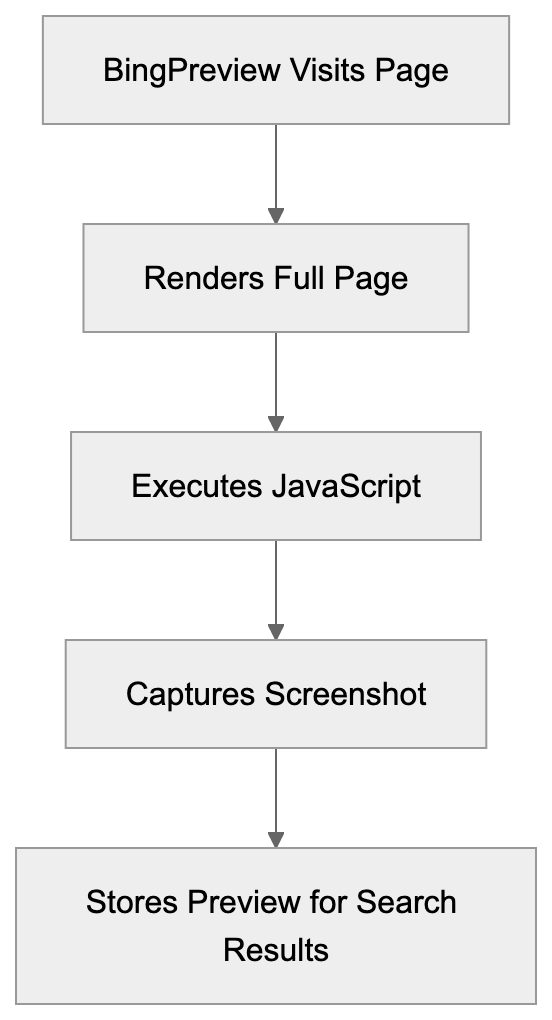
How BingPreview Works
BingPreview operates as a headless browser that visits web pages, rendering them like a real browser would. This includes executing JavaScript, loading CSS, and displaying images.
The crawler self-identifies through a specific user-agent string, currently formatted as:
Mozilla/5.0 (compatible; BingPreview/1.0b)
The exact version numbers change as Microsoft updates the crawler, but the key identifier remains “BingPreview.”
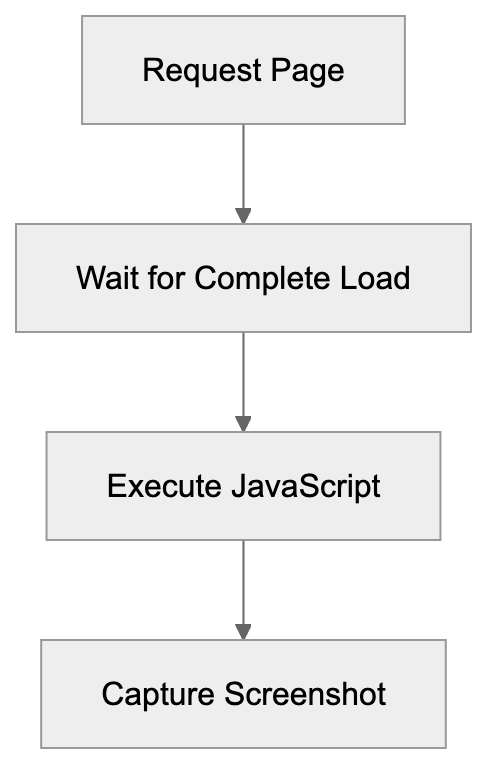
When BingPreview visits your site, it generally follows these steps:
- Requests the page from your server.
- Waits for the complete page load.
- Executes any JavaScript present.
- Captures a screenshot of the rendered content.
BingPreview respects standard robots.txt directives and allows you to block it using the “BingPreview” user-agent name. It follows crawl-delay settings if specified and typically visits pages less frequently than Bingbot.
JavaScript Rendering Capabilities
BingPreview includes comprehensive JavaScript rendering support, crucial because many modern websites rely heavily on JavaScript for content display. Without executing JavaScript, the crawler would see only a blank or incomplete page.
The crawler operates using a real browser engine based on Chromium, enabling it to handle complex JavaScript frameworks. Sites built with React, Vue, Angular, or similar frameworks render correctly, meaning single-page applications work well with BingPreview.
However, JavaScript execution requires additional time and resources. BingPreview might pause several seconds for a page to fully render, ensuring all dynamic content is loaded before capturing a snapshot.
Some websites employ lazy loading for images and content. BingPreview attempts to trigger these mechanisms by scrolling the page and waiting for content to appear but with limitations on waiting time.
If your site has extremely slow JavaScript execution, BingPreview might capture an incomplete preview. Testing your page load times aids in ensuring good previews. Aim for an initial render under 3 seconds for optimal results.
BingPreview Page Rendering Process:
Relationship to Bingbot
BingPreview and Bingbot are separate crawlers that work together. Bingbot is Microsoft’s primary crawler for indexing page content for search results and rankings, while BingPreview exclusively handles visual preview generation.
Both crawlers originate from Microsoft IP addresses and follow similar crawling patterns, respecting the same robots.txt rules. They can be identified separately by their distinct user-agent strings.
Bingbot usually visits pages more frequently than BingPreview. While Bingbot may visit daily, BingPreview might only visit weekly or monthly. This aligns with the need for less frequent updates to preview snapshots compared to search index content.
You can block one crawler without affecting the other. Some sites allow Bingbot access but block BingPreview to conserve server resources. Others may block both crawlers if they choose not to participate in Bing search.
Relationship Between Microsoft Crawlers:
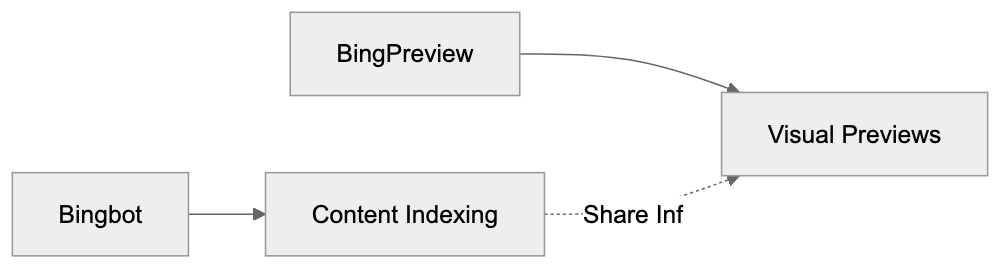
The crawlers internally share information at Microsoft. If Bingbot discovers a new page, it may trigger a subsequent BingPreview visit. Conversely, if BingPreview identifies a broken page, Bingbot may re-crawl to verify.
Blocking BingPreview
To block BingPreview, use robots.txt directives. Add the following lines to your robots.txt file:
User-agent: BingPreview
Disallow: /
This directive blocks the crawler from all pages on your site. You can also selectively block specific sections while allowing others.
Blocking BingPreview doesn’t impact your Bing search rankings. Your pages remain visible in search results; users simply won’t see visual previews when hovering over your results.
Reasons to block BingPreview include high server load, sensitive content, or bandwidth concerns. As the crawler renders full pages, it requires more resources than simple text crawling.
Crawl-delay can reduce BingPreview’s visit frequency:
User-agent: BingPreview
Crawl-delay: 10
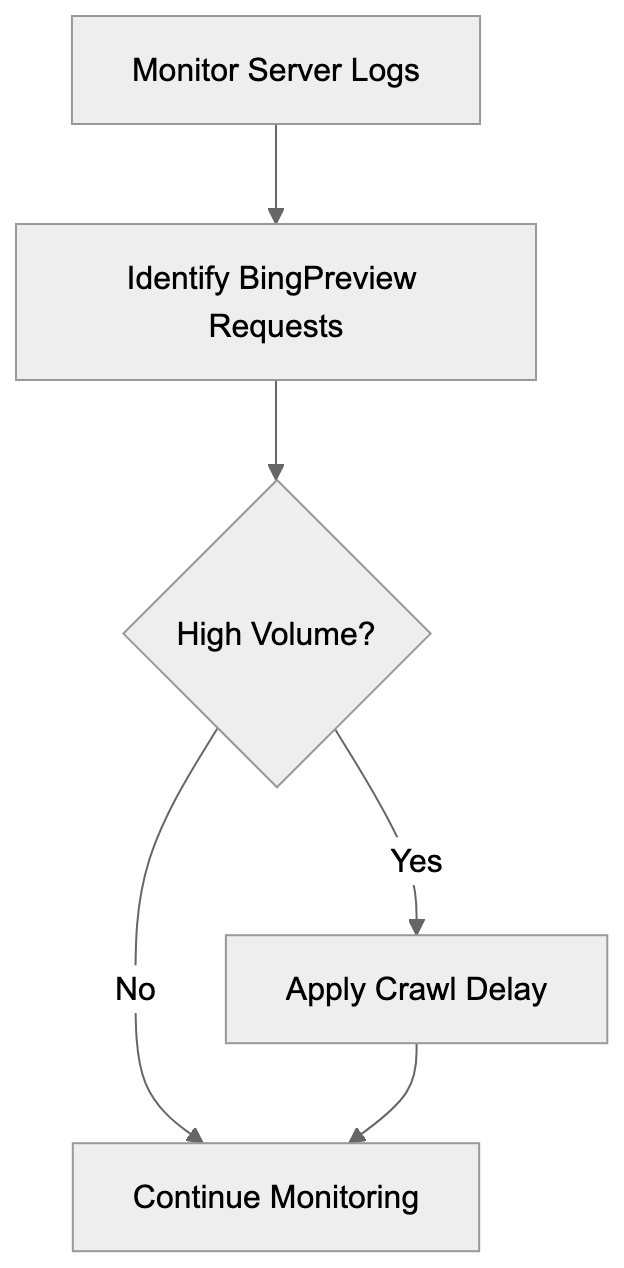
BingPreview Traffic Analysis Workflow:
 This command instructs the crawler to wait 10 seconds between requests, reducing server load while still allowing previews.
Additionally, blocking can be done via firewall or server configuration. BingPreview can be identified by its user-agent string or IP address range. Microsoft publishes their crawler IP address lists, but IP-based blocking requires regular updates as ranges change.
BingPreview vs. Similar Crawlers
Various search engines and services use preview crawlers. Here is how BingPreview compares to alternatives:
| Crawler | Operator | JavaScript Support | Main Purpose | Blocking Method |
|---|---|---|---|---|
| BingPreview | Microsoft | Full Chromium | Search result previews | robots.txt: BingPreview |
| Googlebot-Image | Yes | Image indexing | robots.txt: Googlebot-Image | |
| Yahoo Slurp | Yahoo | No | Search indexing | robots.txt: Slurp |
| DuckDuckBot | DuckDuckGo | Partial | Search indexing | robots.txt: DuckDuckBot |
| Yandex Preview | Yandex | Full | Search result previews | robots.txt: YandexImages |
BingPreview is notable for its robust JavaScript rendering, handling modern web frameworks more effectively than many competitors. It regularly updates its browser engine to stay current.
Google utilizes Googlebot for both indexing and certain previews, such as video thumbnails, without a separate user-agent for general page previews. Googlebot’s dual role makes it more challenging to block previews without affecting search indexing.
Yahoo search employs Bing’s infrastructure, so you might encounter both BingPreview and Yahoo Slurp. Although serving similar purposes, they originate from different IP ranges.
DuckDuckBot concentrates primarily on indexing with limited preview capabilities, while Yandex Preview operates similarly to BingPreview but mainly targets Russian-language search results.
Server Log Analysis
BingPreview visits appear in your web server access logs and can be identified by the user-agent string containing “BingPreview.”
Typical log entries resemble the following:
40.77.167.123 - - [01/Jan/2024:10:15:30] "GET /page.html HTTP/1.1" 200 - "Mozilla/5.0... BingPreview/1.0b"The IP address will belong to Microsoft’s crawler range. A 200 HTTP status code indicates successful crawls. If numerous 404 or 500 errors are present, BingPreview might be accessing broken pages.
Monitoring BingPreview traffic helps refine your crawl budget. High request volumes might signify the crawler is accessing unnecessary pages. Use robots.txt to exclude those sections.
Some analytics tools automatically filter out crawler traffic, so ensure your tools recognize BingPreview if you wish to track these visits separately. The relevant user-agent pattern to match is “BingPreview.”
BingPreview typically requests pages during U.S. business hours but automated crawling can occur at any time. Avoid relying on time-based blocking, as the schedule may change.
Impact on Website Performance
BingPreview can affect server performance by rendering full pages, consuming more resources than a simple text crawler.
The crawler executes JavaScript, triggering API calls and database queries. If a page makes numerous external requests, BingPreview will activate all of them, potentially slowing the server or hitting rate limits on third-party services.
For most small to medium websites, the impact remains minimal. BingPreview’s crawl intensity is not as aggressive as main search bots, resulting in a few requests per day or week.
Large websites with thousands of pages might notice more significant impact, as the crawler could request hundreds of pages in a session. Monitor server metrics post-BingPreview visits to assess actual impact.
Utilizing a CDN assists in load reduction. Static assets served from a CDN do not burden your origin server. Only changes in content generation affect your infrastructure.
If BingPreview causes issues, implement crawl delay or blocking. Additionally, improving page load speed benefits both crawlers and human visitors.
Best Practices for BingPreview
Allow BingPreview access to enhance visibility in Bing search results. Visual previews significantly improve click-through rates.
Ensure pages load quickly and render properly. Test your site with JavaScript enabled to see what BingPreview captures, as slow-loading pages might result in incomplete or low-quality previews.
Avoid serving different content to BingPreview than regular users, as this is cloaking and violates search engine guidelines. Microsoft may penalize your site if detected.
Employ descriptive page titles and proper HTML structure. While BingPreview captures visual layout, search results also display text snippets. Proper structure aids both aspects.
Regularly review your robots.txt file to avoid unintentionally blocking BingPreview. Some CMS platforms have default robots.txt settings that block preview crawlers.
Check server logs periodically for BingPreview errors. Frequent 500 errors may indicate technical issues. Rectifying these ensures quality previews.
Consider above-the-fold content carefully, as this appears in preview snapshots. Make sure it’s appealing and appropriately represents your content.
Conclusion
BingPreview is Microsoft’s specialized crawler for producing visual page previews in Bing search results. Operating separately from Bingbot, it serves a complementary purpose. BingPreview uses full JavaScript rendering with a Chromium-based engine to record accurate page snapshots.
Understanding BingPreview aids in managing your site’s presence in Bing search. You can control access through robots.txt, optimize pages for better previews, or block the crawler if necessary. It respects standard web protocols and typically does not cause performance issues for most sites.
For businesses that rely on Bing for traffic, allowing BingPreview makes sense. Effective visual previews can increase click-through rates and attract more visitors to your site. Monitor the crawler’s activity through server logs and adjust your configuration as needed to balance preview quality with server performance.
Frequently Asked Questions
What should I do if BingPreview is consuming too many server resources?
If BingPreview is impacting your server performance, consider implementing a crawl delay in your robots.txt file or blocking the crawler entirely. This can help minimize its resource consumption while allowing your site to remain indexed by Bing.
How can I ensure my site is presenting well in BingPreview?
To improve how your site appears in BingPreview, ensure fast page loading times and proper rendering of content, especially JavaScript. Regularly test your pages to confirm that all important content is loading correctly without issues.
Does blocking BingPreview affect my Bing search rankings?
No, blocking BingPreview through your robots.txt file does not affect your site's rankings in Bing search results. Users will still see your pages in results, but they won't see visual previews.
How often does BingPreview visit my site?
BingPreview typically visits sites less frequently than Bingbot, generally on a weekly or monthly basis. The visit frequency may vary depending on the website's content updates and how Bing evaluates the need for fresh previews.
What is the difference between BingPreview and Bingbot?
BingPreview serves specifically to generate visual page previews for Bing search results, while Bingbot's primary role is to index page content for search rankings. Both crawlers follow similar protocols but have different operating focuses.
Can I test how BingPreview renders my pages?
Yes, you can test how BingPreview captures your pages by using web development tools or browser extensions that simulate headless browsing. Ensure your page behaves as expected with JavaScript enabled, to verify how BingPreview will likely render it.
What implications does JavaScript rendering by BingPreview have for my site?
BingPreview's capability to render JavaScript is crucial for modern websites, as it allows complete content display. If your site relies on JavaScript for presenting key information, ensure that it loads quickly to facilitate accurate previews.
Track Your AI Visibility
See how AI chatbots like ChatGPT, Claude, and Perplexity discover and recommend your brand.