UptimeRobot's Website Monitoring Crawler Explained
Learn about UptimeRobot's monitoring crawler, its user-agent, configurations, and how it compares to alternatives for uptime monitoring.
What is UptimeRobot and Why Monitoring Crawlers Matter
Website downtime costs businesses money and damages reputation. Every minute your site is down, you lose potential customers and revenue. This is where uptime monitoring tools like UptimeRobot come in. UptimeRobot is a popular website monitoring service that checks if your site is up and running 24/7. The service works by sending automated requests to your website at regular intervals through what’s called a website monitor crawler. These crawlers are basically bots that visit your website just like a regular visitor would, but they’re checking if everything works properly.
For developers and business owners, understanding how these monitoring crawlers work is essential. You need to know what they do, how to identify them in your server logs, and whether you should allow or block them. UptimeRobot monitors over 1.5 million websites according to their public statistics. The service offers both free and paid plans with different monitoring intervals and features.
Understanding UptimeRobot’s Monitoring Crawler
UptimeRobot Monitoring Process:
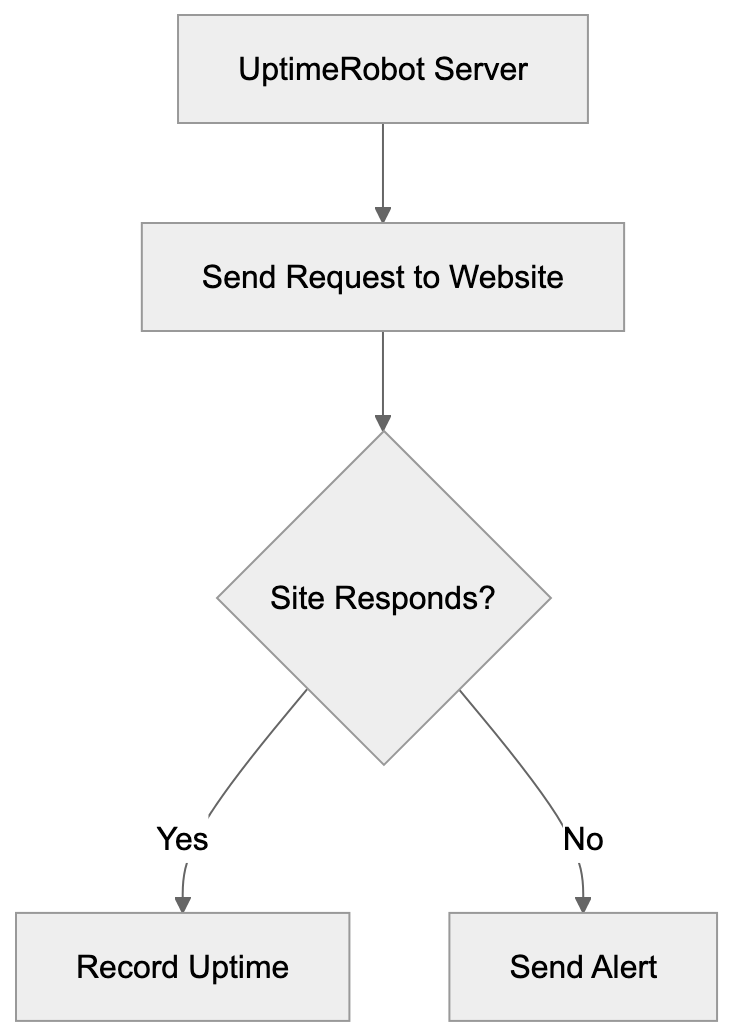
The UptimeRobot crawler is an automated system that performs regular checks on your website. When you set up monitoring with UptimeRobot, their servers send HTTP or HTTPS requests to your specified URL. The uptime checker monitors if your site responds correctly and measures response time. This happens every 5 minutes on free plans and can reduce to every 1 minute on paid plans.
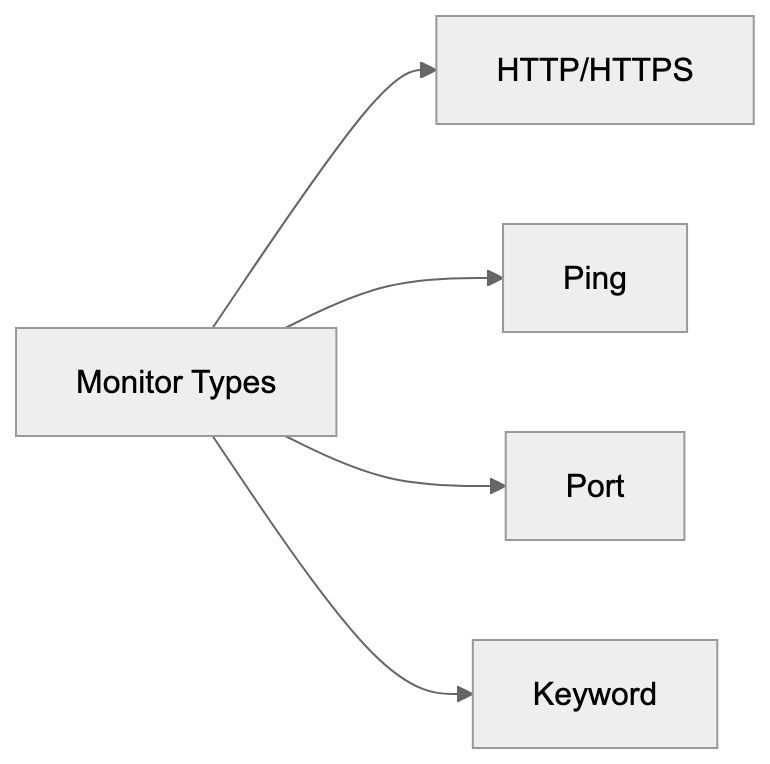
The crawler performs different types of checks, including HTTP(s) monitoring, ping monitoring, port monitoring, and keyword monitoring. For HTTP checks, it looks for specific status codes like 200 OK to confirm your site is functioning. The crawler operates from multiple locations around the world, providing a complete picture of your site’s availability. When the crawler detects downtime, UptimeRobot sends alerts via email, SMS, or other notification methods you configure. The system also tracks response times and creates uptime statistics viewable in dashboards and reports.
The UptimeRobot User-Agent String
Every web crawler identifies itself through a user-agent string. This functions as a digital ID card that tells your server what kind of bot or browser is making the request. UptimeRobot uses a specific user-agent string: “Mozilla/5.0 (compatible; UptimeRobot/2.0; http://www.uptimerobot.com/)”. This user-agent helps you identify UptimeRobot requests in your server logs and web analytics.
Knowing this string is important for several reasons:
Monitor Types Overview:
- It lets you filter out monitoring traffic from your analytics, providing accurate visitor statistics.
- It allows you to create specific firewall or security rules for the crawler.
- Use it to troubleshoot if there seems to be an issue with your monitoring.
The version number in the user-agent may change as UptimeRobot updates their systems. Some servers might see variations of this string depending on the type of check being performed. Always check your actual server logs to confirm the exact format you’re receiving.
Should You Block the UptimeRobot Crawler
This is a common question site owners face. Blocking the UptimeRobot crawler means your monitoring won’t work. If you block it at the firewall or through robots.txt, UptimeRobot will think your site is down, even when it’s actually fine. This defeats the entire purpose of uptime monitoring.
However, there are legitimate reasons you might want to control crawler access. Some sites use IP whitelisting for security and need to specifically allow UptimeRobot’s IP addresses. Others want to exclude monitoring traffic from analytics for cleaner data. Fortunately, you don’t need to completely block the crawler to achieve these goals.
- For analytics, most platforms let you filter traffic by user-agent string.
- For security, UptimeRobot provides a list of their monitoring IP addresses that you can whitelist.
Generally, you should NOT block the UptimeRobot crawler if you’re actively using their service. Instead, configure your systems to handle it appropriately while still allowing proper site monitoring.
How to Configure Your Server for UptimeRobot
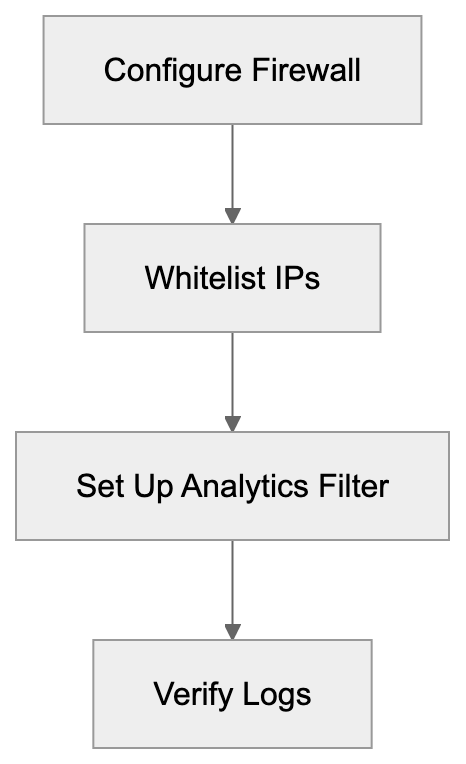
Setting up your server to work well with UptimeRobot monitoring is straightforward:
- Firewall Settings: Allow incoming requests from UptimeRobot’s IP ranges. You can find their current IP list in the UptimeRobot documentation.
- Rate Limiting and DDoS Protection: Whitelist these IPs so monitoring requests aren’t mistakenly blocked.
- Web Analytics: Filter out the UptimeRobot user-agent for cleaner visitor data. In Google Analytics, you can create a filter using the user-agent string. Server-side analytics can exclude requests matching the UptimeRobot pattern accordingly.
- robots.txt File: Ensure you’re not accidentally blocking the crawler. While UptimeRobot doesn’t follow robots.txt directives by design since it needs to check actual availability, some security tools might use robots.txt as part of their blocking logic.
- Server Logs Monitoring: Confirm UptimeRobot requests are coming through as expected and your site is responding correctly.
UptimeRobot Monitoring Features and Capabilities
UptimeRobot offers several monitoring capabilities beyond basic HTTP checks:
- HTTP(s) Monitoring: Verifies your website responds with the correct status code.
- Ping Monitoring: Checks if your server is reachable at the network level.
- Port Monitoring: Confirms specific ports are open and responding.
- Keyword Monitoring: Looks for specific text on your page to ensure content loads properly.
- SSL Certificate Monitoring: Ensures SSL certificates don’t expire, maintaining security for HTTPS sites.
- API and Web Service Monitoring: Suitable for not only regular websites but also APIs.
Monitoring intervals vary by plan type. Free accounts get 5-minute intervals with up to 50 monitors. Paid plans offer 1-minute intervals and additional monitors. UptimeRobot tracks response times for each check, calculates averages, and maintains 90 days of logs on all plans. Alert channels include email, SMS, voice calls, webhooks, and integrations with services like Slack and PagerDuty.
Comparison with Alternative Monitoring Tools
Several services compete with UptimeRobot in the uptime monitoring space. Here’s a comparison:
| Service | Free Plan | Min Check Interval | Monitors on Free Plan | User-Agent Format | Locations |
|---|---|---|---|---|---|
| UptimeRobot | Yes | 5 min free, 1 min paid | 50 | UptimeRobot/2.0 | 10+ |
| Pingdom | Trial only | 1 min | N/A | Pingdom.com agent | 100+ |
| StatusCake | Yes | 5 min free | 10 | StatusCake | 30+ |
| Better Uptime | Yes | 3 min free, 30 sec paid | 10 | BetterUptime | 20+ |
| Freshping | Yes | 2 min | 50 | Freshping | 10+ |
UptimeRobot stands out for its generous free plan and simple interface. Pingdom offers more monitoring locations, but lacks a free tier beyond trials. StatusCake provides unlimited monitors on free plans but has fewer features. Better Uptime emphasizes developer-friendly features and incident management. Freshping is newer but matches UptimeRobot on many features. Each service has its own user-agent string that you must manage differently in your logs and analytics. Your choice depends on specific needs, budget, and preference for features like integrations and reporting.
Real World Use Cases for UptimeRobot
Small business owners use UptimeRobot to monitor e-commerce sites, receiving immediate alerts if an online store goes down. Each minute of downtime during business hours means lost sales. Developers monitor staging and production environments for client projects, quickly spotting breaks when deploying updates.
Marketing professionals ensure campaign landing pages remain functional so ads don’t send traffic to broken pages. Web hosting companies track server uptime to meet SLA commitments, while SaaS companies monitor web applications and APIs, catching outages before customers complain. Particularly useful for sites without dedicated ops teams, solo developers or small agencies can set it up in minutes for professional-grade monitoring. The monitoring crawler works silently in the background, notifying you only when issues arise, allowing you to focus on building and marketing instead of constant uptime checking.
Technical Details About Monitoring Requests
When UptimeRobot’s crawler checks your site, it makes a standard HTTP or HTTPS request. The request includes headers like any browser would send. The key difference is the user-agent string identifying it as UptimeRobot. For HTTP monitoring, the crawler expects to receive a 2xx or 3xx status code depending on your configuration.
You can configure it to follow redirects or treat them as errors. The timeout for requests is typically 30 seconds. If your server doesn’t respond within this time, the check fails. For keyword monitoring, the crawler downloads the page content and searches for specified text—this is case-sensitive by default but configurable. Port monitoring attempts a TCP connection to the specified port. For SSL monitoring, it checks certificate validity dates, warning you before expiration. The crawler doesn’t execute JavaScript, so it views your page as a basic HTTP client would. If JavaScript is essential for your site’s loading, you may need to adjust what you’re monitoring.
Privacy and Data Considerations
UptimeRobot’s crawler collects data about your site’s availability and response times, stored on UptimeRobot’s servers and displayed on your dashboard. The service doesn’t collect or store page content beyond what’s needed for keyword monitoring. For HTTPS sites, the connection between UptimeRobot and your server is encrypted, though monitoring data on UptimeRobot’s platform is not end-to-end encrypted in most cases. This means UptimeRobot can see your URLs, response times, and any monitored keywords.
Server Configuration Workflow:
 For most websites, this isn’t a concern since URLs are public, but consider security planning if monitoring internal systems or sensitive URLs. The service complies with GDPR and has a privacy policy covering data handling. Free accounts have the same privacy protection as paid accounts. UptimeRobot doesn’t sell monitoring data to third parties. Your uptime statistics can be made public if you choose to share your status page, but this is optional.
Troubleshooting Common Issues
Sometimes UptimeRobot reports your site as down when it’s actually functioning fine. Common causes include:
- Firewall Blockages: Your firewall or security system might be blocking UptimeRobot’s IPs. Check firewall logs and whitelist their IP ranges.
- Rate Limiting: Aggressive rate limiting rules might block monitoring requests.
- CDN Routing Issues: Geographic routing issues could occur if you use a CDN. Ensure UptimeRobot’s monitoring locations can reach your site accordingly.
- SSL Certificate Issues: Configuration problems or imminent expiry might cause false positives.
- Timeouts: Slow server responses might result in false downtime alerts.
Always check server logs when receiving downtime alerts to understand what actually transpired on your end.
Setting Up Effective Monitoring
To maximize UptimeRobot’s effectiveness, configure monitors thoughtfully:
- Monitor your homepage and critical pages like checkout or signup flows.
- Utilize keyword monitoring to verify essential content loads. For example, ensure your site name or a key heading is always present.
- Set up port monitoring for critical services like databases or mail servers if publicly accessible.
- Carefully configure alert contacts to ensure the right people are notified. Over-alerting causes fatigue, while under-alerting means issues go unnoticed.
- Use alert escalation so if the first person doesn’t respond, others are notified.
- Create a public status page if suitable for your business, letting customers check status themselves instead of contacting support.
- Periodically review your uptime statistics to identify patterns or recurring issues.
Conclusion
The UptimeRobot monitoring crawler is vital for website owners and developers. It performs automated checks from multiple locations to verify site accessibility and responsiveness. Understanding the user-agent string “UptimeRobot/2.0” helps you identify these requests in logs and configure your systems appropriately.
You should generally not block the crawler if you use UptimeRobot for monitoring, but exclude it from analytics using the user-agent. The service compares favorably to alternatives like Pingdom, StatusCake, Better Uptime, and Freshping, particularly for small businesses and developers benefiting from the generous free tier. Proper configuration involves whitelisting UptimeRobot’s IP addresses, setting appropriate monitoring intervals, and choosing the right alert channels. Whether you’re monitoring a small business website, a SaaS application, or client projects, UptimeRobot’s crawler works silently in the background to alert you the moment something goes wrong. This lets you resolve issues before they significantly impact users or revenue.
Frequently Asked Questions
How do I sign up for UptimeRobot?
You can sign up for UptimeRobot by visiting their website and selecting either the free or paid plan. Simply create an account using your email address, and you'll be able to set up your monitoring preferences right away.
What types of monitors does UptimeRobot offer?
UptimeRobot offers several types of monitors including HTTP(s) monitoring, ping monitoring, port monitoring, keyword monitoring, and SSL certificate monitoring. This variety allows you to customize the monitoring based on your website's specific needs.
Can I use UptimeRobot for monitoring APIs?
Yes, UptimeRobot can monitor APIs in addition to regular websites. You can set up API monitoring to ensure that your services are operational and that they return the expected responses.
What happens if UptimeRobot detects downtime?
If UptimeRobot detects downtime, it will send alerts via your configured notification channels, such as email or SMS. This immediate notification allows you to address the issue promptly to minimize any potential impact on your users or revenue.
How do I filter UptimeRobot traffic in my analytics?
You can filter UptimeRobot traffic in your analytics platform by using their specific user-agent string, "UptimeRobot/2.0". This allows you to exclude monitoring requests from your visitor statistics, providing a clearer view of actual user traffic.
Is my data secure while using UptimeRobot?
UptimeRobot takes data security seriously and complies with GDPR regulations. While the connection for HTTPS sites is encrypted, UptimeRobot does store monitoring data like response times on their servers, but they do not sell this data to third parties.
What should I do if UptimeRobot reports false downtime?
If you receive a false downtime alert from UptimeRobot, check your server logs to determine the cause. Common issues include firewall blocks, server rate limiting, or CDN routing problems. Addressing these potential issues can help ensure accurate monitoring.
Track Your AI Visibility
See how AI chatbots like ChatGPT, Claude, and Perplexity discover and recommend your brand.