Twitter Card Meta Tags: Optimize Content for X (Twitter)
Learn how to implement Twitter Card meta tags for rich previews on X. Covers summary cards, large image cards, and integration with Open Graph.
Table of Contents
- What Are Twitter Card Meta Tags
- Why Twitter Card Meta Tags Exist
- How to Implement Twitter Card Meta Tags
- Twitter Cards vs. Open Graph Tags
- Testing Your Twitter Card Implementation
- Twitter Card Meta Tags Reference
- Comparing Twitter Cards to Other Social Preview Systems
- Common Issues and How to Fix Them
- Best Practices for Twitter Card Optimization
- Combining with Content Management Systems
- End
- What Are Twitter Card Meta Tags
- Why Twitter Card Meta Tags Exist
- How to Implement Twitter Card Meta Tags
- Twitter Cards vs. Open Graph Tags
- Testing Your Twitter Card Implementation
- Twitter Card Meta Tags Reference
- Comparing Twitter Cards to Other Social Preview Systems
- Common Issues and How to Fix Them
- Best Practices for Twitter Card Optimization
- Combining with Content Management Systems
- End
What Are Twitter Card Meta Tags
Twitter Card meta tags are special HTML tags you insert into your website’s code. They control the appearance of your content when someone shares your link on X (formerly Twitter). Without these tags, shared links merely look like plain URLs, sometimes accompanied by a title if you’re fortunate.
These meta tags gained importance as social media began driving vast amounts of traffic to websites. When sharing a blog post or product page, you want it to look appealing, and Twitter Cards make your links stand out in the feed by displaying images, titles, descriptions, and sometimes even more detailed information.
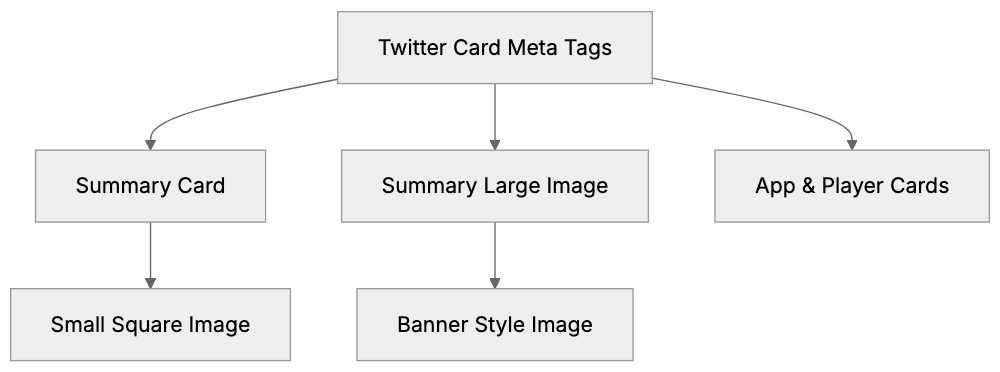
The primary types are summary cards and summary large image cards. Summary cards display a small square image next to your text, while summary large image cards feature a big banner image. Although there are also app cards and player cards, most web developers and content marketers prefer the first two types.
Twitter Card meta tags function in conjunction with Open Graph tags (used by Facebook). Often, you can use Open Graph tags, and Twitter will read them. However, Twitter-specific tags like twitter:card provide more control over how things appear on X.
Why Twitter Card Meta Tags Exist
Social platforms aim to keep users on their site for as long as possible. When links are shared, the platform wants to display what the link is about without requiring users to click away. This is where preview cards become essential.
Twitter Card Types Overview:
X (formerly Twitter) introduced Card meta tags in 2012. Before this, shared links were just text—no images or rich previews. Content easily got lost in the clutter, prompting marketers and publishers to seek better ways to highlight their content.
The purpose is simple: empower content creators to control their social media presence. You select the image that appears, craft the description, and ensure your brand looks professional when shared.
For businesses, this is crucial. An attractive preview can double click-through rates compared to plain text links. SEO experts know that social signals are significant too. More clicks from social media can indirectly boost your search rankings.
Small business owners benefit as they can compete with larger companies on social media. An optimized Twitter Card levels the playing field, making a local shop’s blog post look as polished as a Fortune 500 company’s article.
How to Implement Twitter Card Meta Tags
Implementing these tags involves adding them to the head section of your HTML document. They resemble regular meta tags but start with twitter: as the property name.
The basic setup requires a few tags:
twitter:cardto specify the card typetwitter:titlefor the headlinetwitter:descriptionfor the summary texttwitter:imagefor the preview image
Here’s an example of what the code looks like in your HTML head section:
<meta name="twitter:card" content="summary_large_image">
<meta name="twitter:title" content="Your Page Title Here">
<meta name="twitter:description" content="A brief description of your content">
<meta name="twitter:image" content="https://yoursite.com/image.jpg">
Twitter Card Implementation Flow:
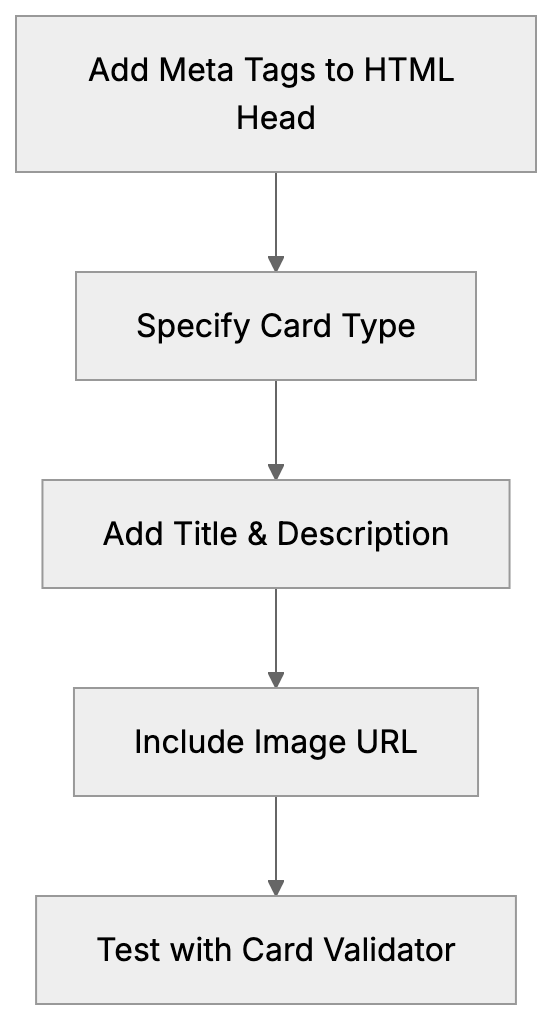
The twitter:card value can typically be summary or summary_large_image. Use summary for a small image or summary_large_image for a banner-style preview.
For twitter:image, provide a complete URL to the image. The image should be at least 300x157 pixels for summary cards and 800x418 pixels for summary_large_image cards, with a 2:1 aspect ratio recommended for large image cards.
You can include twitter:site to specify your Twitter username, indicating which account the content belongs to. Format it like this: content="@yourusername".
The twitter:creator tag indicates the content author, useful if your site has multiple contributors.
Most content management systems have plugins or features for this. WordPress plugins like Yoast SEO and Rank Math handle Twitter Cards automatically. Shopify themes usually support Twitter Cards, but manual addition is needed if you’re coding from scratch.
Twitter Cards vs. Open Graph Tags
Open Graph tags, introduced by Facebook in 2010, serve the same function for Facebook and other platforms.
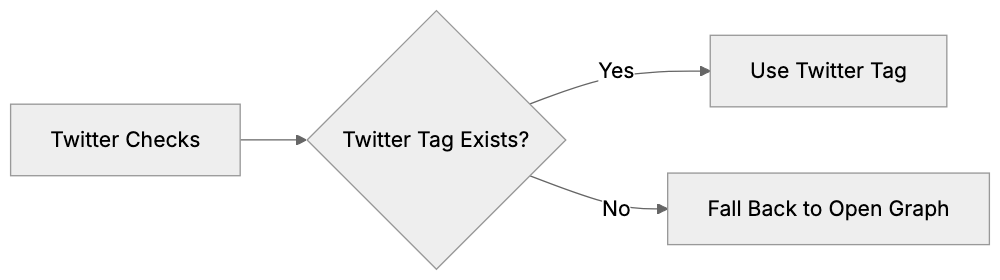
The advantage? Twitter defaults to Open Graph tags if no Twitter Card tags are present, so using og:title, og:description, and og:image suffices.
Tag Priority Fallback System:
However, you sacrifice some control. The summary_large_image card type lacks an Open Graph equivalent. For a big banner image on Twitter, you need the twitter:card tag.
Many developers use both, adding Open Graph tags for broader compatibility and Twitter Card tags for better X customization.
If og:title is present but not twitter:title, Twitter defaults to og:title, the same for descriptions and images. Twitter prioritizes its tags, then falls back on Open Graph.
The twitter:card tag is unique; specify it to activate Twitter Cards. Otherwise, Twitter only provides a basic preview.
Some platforms automate both tag types. When social sharing is set up, they generate both sets of tags, ensuring a good appearance on all platforms.
Testing Your Twitter Card Implementation
Twitter offers a Card Validator tool, now found at cards-dev.x.com/validator (following X’s rebranding).
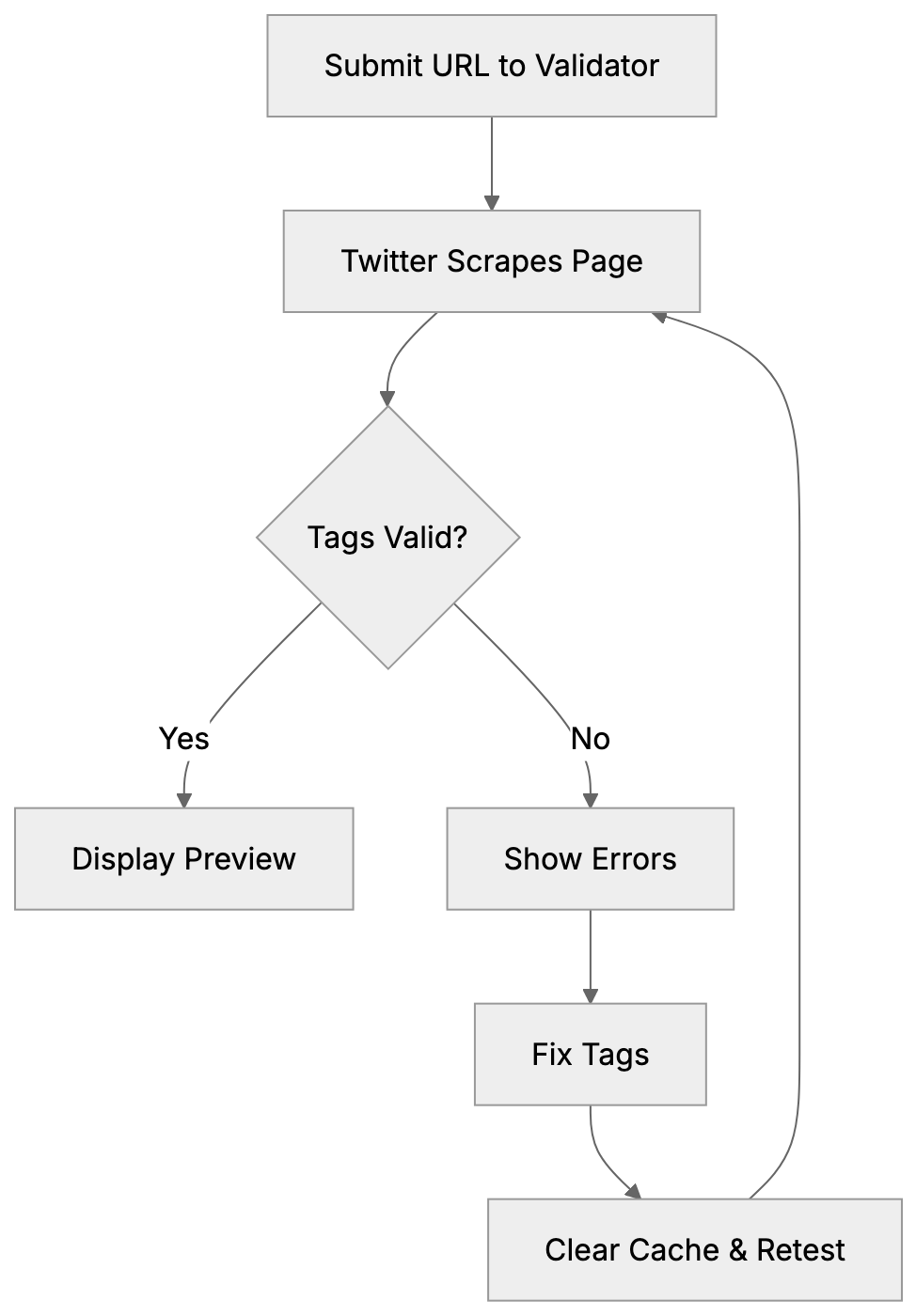
Submit your page URL to the validator to see exactly how your card appears when shared. It identifies missing or incorrect tags.
Common mistakes include incorrect image URLs, missing tags, or too-small images. The validator detects these issues.
After fixes, clear Twitter’s cache using the validator’s preview card button to force a re-scrape and update the link appearance.
For developers managing multiple pages, test various types. Your homepage might look fine, but individual blog posts or product pages may require different image sizes.
Twitter Card Validation Process:
Some browser extensions allow Twitter Card previews without using the official validator, streamlining development.
Note, changes take time to reflect on Twitter due to cache delays. During development, this delay can be frustrating but is a part of Twitter’s systems.
Twitter Card Meta Tags Reference
Here’s a reference for the main Twitter Card meta tags:
| Tag Name | Purpose | Required | Notes |
|---|---|---|---|
| twitter:card | Specifies card type | Yes | Values: summary, summary_large_image, app, player |
| twitter:title | Content title | Yes | Max 70 characters recommended |
| twitter:description | Content description | No | Max 200 characters recommended |
| twitter:image | Preview image URL | Yes (for image cards) | Min 300x157px for summary |
| twitter:site | Website’s Twitter account | No | Format: @username |
| twitter:creator | Content author’s account | No | Format: @username |
| twitter:image:alt | Image description | No | Important for accessibility |
The twitter:title should be concise. With a 70-character limit, keep it clear.
twitter:description has more space but stays effective around 200 characters.
twitter:image:alt enhances accessibility, enabling screen readers to describe images to users with visual impairments—optional yet recommended.
Image requirements vary: summary cards fit square images around 300x300 pixels, and summary large image cards need wider ones, ideally 800x418 pixels or larger.
Twitter supports JPG, PNG, WEBP, and GIF formats. Keep file sizes under 5MB to optimize loading and preview generation.
Comparing Twitter Cards to Other Social Preview Systems
Different platforms handle link previews differently. Here’s how Twitter Cards stack up:
| Platform | Meta Tag Prefix | Unique Features | Image Requirements |
|---|---|---|---|
| Twitter/X | twitter: | Summary vs. large image choice | 800x418px recommended |
| og: (Open Graph) | Detailed object types | 1200x630px recommended | |
| og: (Open Graph) | Defaults to Open Graph | 1200x627px recommended | |
| og:, pinterest: | Rich Pins for products | 1000x1500px (2:3 ratio) | |
| Slack | og: (Open Graph) | Auto-unfurls links | Varies, uses Open Graph |
Facebook’s Open Graph is more complex with specific object types like article or product. Twitter Cards are simpler, with fewer card types.
LinkedIn lacks its own meta tags but reads Open Graph tags exclusively. Enhancing for Facebook covers LinkedIn as well.
Pinterest relies on Open Graph plus custom Pinterest tags, focusing more on image-heavy content.
Slack uses Open Graph tags, automatically unfurling links in conversations without special tags beyond Open Graph.
For marketers managing multiple platforms, the strategy is straightforward: use Open Graph tags for broad compatibility, then add Twitter-specific tags for better X control.
Common Issues and How to Fix Them
A frequent issue is images not showing up, often due to incorrect image URLs or oversized files. Ensure your twitter:image URL is complete, including https://.
If the image file exceeds Twitter’s 5MB limit, compress images with tools like TinyPNG or ImageOptim to reduce size while maintaining quality.
Another common problem is cached old previews. Update your meta tags, but Twitter still displays the old card. Use the Card Validator to force a refresh, clearing Twitter’s cache for that URL.
Missing the twitter:card tag is an easy mistake. Without it, Twitter doesn’t know which card type to display. Always include this tag even if other tags are present.
Incorrect image dimensions lead to issues. Portrait images won’t display well in a summary_large_image card that expects a landscape orientation. Ensure your image matches the card type’s aspect ratio.
Some CMS generate meta tags automatically but may do so incorrectly, creating duplicate tags or using wrong values. Verify your page source to ensure tag accuracy.
Changing content may cause issues. If page titles or descriptions change based on user actions, ensure meta tags also update. Single-page applications need special handling to update meta tags with content changes.
HTTPS is required for images. Twitter won’t load images from non-secure HTTP URLs. Always use https:// in your image URLs.
Best Practices for Twitter Card Optimization
Choose images thoughtfully. The preview image is the first thing viewers see. Use high-quality images that clearly represent your content and avoid generic stock photos.
For summary_large_image cards, center vital visual elements. Twitter crops images on mobile devices, so text or logos on edges may get cut off.
Write compelling descriptions. You have 200 characters to entice a click, so make it count. Focus on benefits or the main point of your content.
Test on mobile devices. Most Twitter users access via phones, so ensure cards look appealing on small screens. Despite validators showing desktop previews, always check for mobile too.
Maintain consistent branding. Your Twitter Cards should reflect your overall brand look, incorporating the same fonts, colors, and style as your website, building recognition.
Update cards for seasonal content. If promoting a holiday sale or time-sensitive event, update the image and description accordingly. Don’t leave outdated cards active.
Monitor click-through rate. Track how many people click your links from Twitter. If cards aren’t performing well, experiment with different images or descriptions.
Content marketers can use A/B testing: create two card versions and observe which one garners more engagement. Change one element at a time to identify effective strategies.
Don’t forget the twitter:image:alt tag. It aids accessibility, ensuring users with images turned off understand the image’s content.
Combining with Content Management Systems
WordPress facilitates Twitter Cards with plugins like Yoast SEO and Rank Math, which automatically generate Twitter Card tags. You can customize them for each post or page.
In Yoast, during post editing, access the Social tab to find the Twitter section where you set the title, description, and image. The plugin automatically adds these meta tags to your HTML.
Rank Math offers a similar service, providing a social preview to show your card’s appearance, editable directly in the WordPress editor.
Shopify themes often include built-in Open Graph and Twitter Card support. Check your theme settings, most allow setting default images and customizing product cards.
For custom-built sites, add tags manually or use a templating system, setting variables for title, description, and image, then populating the meta tags dynamically.
Modern frameworks like Next.js have components for managing meta tags. The next/head component lets you easily add Twitter Card tags to individual pages.
React apps need libraries like react-helmet that update meta tags as page content changes—crucial for single-page apps.
Static site generators like Hugo or Jekyll utilize templates. Integrate the Twitter Card tags into your base template and use variables to populate them from front matter.
End
Twitter Card meta tags grant control over how your content appears on X (formerly Twitter). The crucial tags are twitter:card, twitter:title, twitter:description, and twitter:image, forming compelling previews that attract clicks to your site.
Setup is simple: add meta tags to your HTML head. Most content management systems automate through plugins, and for custom sites, manual addition takes just minutes per page.
The summary_large_image card type generally works best, displaying a large banner image that captures attention. Ensure high-quality images at least 800x418 pixels and keep file sizes within 5MB.
Validate with Twitter’s Card Validator before sharing to address missing tags or incorrect image URLs. Remember, Twitter Cards and Open Graph tags complement each other, offering optimization flexibility across platforms.
For web developers and marketers, Twitter Cards are vital, boosting click-through rates and ensuring professional content appearance. Proper implementation enhances your social media performance.
Frequently Asked Questions
What is the purpose of Twitter Card meta tags?
Twitter Card meta tags enhance how content appears when shared on X (formerly Twitter). They provide control over the presentation of links, allowing for rich media previews that can significantly increase engagement and click-through rates.
How do I implement Twitter Card meta tags on my website?
To implement Twitter Card meta tags, add them to the head section of your HTML document. Essential tags include `twitter:card`, `twitter:title`, `twitter:description`, and `twitter:image`. You can manually code these or use plugins if your site is on a content management system.
What types of Twitter Cards are available?
The main types of Twitter Cards are summary cards and summary large image cards. Summary cards feature a small image, while summary large image cards display a large banner image. Each card type serves different purposes based on the visual content you want to share.
Can I use Open Graph tags with Twitter Cards?
Yes, you can use Open Graph tags alongside Twitter Cards. If Twitter detects Open Graph tags like `og:title` and `og:image`, it will display those when Twitter Card tags are not present. However, using Twitter-specific tags gives you more precise control over the appearance on X.
How can I test my Twitter Card implementation?
You can use the Twitter Card Validator tool to test your implementation. By submitting a page URL, you can see how your card will appear when shared and identify any missing or incorrect tags that need to be fixed.
What should I do if my Twitter Card image is not displaying?
If your Twitter Card image is not displaying, check the image URL for correctness and ensure it meets Twitter's size requirements (at least 300x157 pixels for summary cards). Also, verify that the image is served over HTTPS and is less than 5MB in size.
Are there any best practices for optimizing Twitter Cards?
To optimize Twitter Cards, use high-quality images that represent your content effectively and craft concise, compelling descriptions. Additionally, maintain consistent branding across your cards and use the `twitter:image:alt` tag for accessibility to enhance user experience.